Support
Feature guides, plan availability, troubleshooting, and FAQs for the Aganim AI Shopify app.
Feature docs
Each feature below includes plan availability, step-by-step usage, and common fixes.

Brand Soul
Define your brand identity — archetype, tone, power words, banned phrases, and cultural touchpoints — to power all AI-generated content.

Brand Soul
Define your brand identity — archetype, tone, power words, banned phrases, and cultural touchpoints — to power all AI-generated content.
- Analyzes your store and generates a brand profile: archetype, tone, power words, banned phrases, core value propositions, and cultural touchpoints.
- Brand context automatically enriches all AI features — rewrites, missions, marketing copy, and content templates.
- Upload your brand logo (PNG, JPG, or WebP) for use in Informative-style hero banners.
- Navigate to Brand Soul from the Home page.
- Click "Edit Identity" to open the Brand Soul wizard.
- Follow the wizard — the AI analyzes your store and generates brand intelligence.
- Review the generated profile: archetype, tonal guardrails, power words, banned phrases, value propositions, and cultural touchpoints.
- Upload your brand logo for hero banner generation.
- To enable or disable Brand Soul globally, use the toggle on the Dashboard (under Brand Soul). When enabled, brand context is automatically applied to all AI features.
- Dashboard Toggle: Enable or disable Brand Soul globally from the Dashboard. When enabled, all AI features automatically use your brand context.
- Rewriter (strongest impact): Your full brand story, pillars, and philosophy are injected into the LLM prompt with strict instructions to weave brand facts into the product description naturally — not as a copy-pasted 'About Us' block.
- Missions: Brand context is automatically injected when agents run in a mission pipeline. Every agent in the chain benefits from your brand profile.
- Content Templates: Blog posts, hero sections, and collection descriptions draw on your brand voice.
- Hero Banners: Your uploaded logo appears in the "Informative" image style for hero sections and collections.
- Image Refinement & Marketing Images: A short brand aesthetic hint (archetype + power words) is added to the image prompt — e.g., 'Heritage House. heritage, master artisans, meticulous, Ichigo Ichie, heirlooms aesthetic.' This gives the image model a subtle style direction.
- Marketing Ads (Ideogram): The brand aesthetic is injected into the ad composition prompt to influence the visual style and tone of generated typography ads.
- Note: Image models respond to brand soul more subtly than the text Rewriter. The visual difference is most noticeable in the Premium and Natural themes, where the aesthetic hint complements the scene styling. For Clean Studio and Minimalist themes, the effect is minimal by design.
Brand intelligence is stuck on "Generating..."
- Wait up to 2 minutes — the page polls for updates automatically.
- Refresh the page and check if the status updated.
- If still stuck, try running the wizard again.
Logo upload failed.
- Ensure the file is PNG, JPG, or WebP.
- Try a smaller file if the upload times out.
Can I edit the generated brand profile?
How often should I re-run Brand Soul?
Where is the logo used?
How do I enable or disable Brand Soul?
Rewriter Workspace
Generate localized drafts (title + HTML description + SEO title/meta) per market and save translations back to Shopify.
Rewriter Workspace
Generate localized drafts (title + HTML description + SEO title/meta) per market and save translations back to Shopify.
- A workspace to optimize a product for global markets (per locale).
- Generates: title, HTML description, SEO title, meta description, and optional SEO alt text.
- Supports per-locale editing so you can tailor messaging and SEO to each market.
- Open Rewriter and select a product.
- Select target market(s)/locale(s). (Basic: 1 locale. Standard/Pro: multi-locale.)
- Set Optimization Preferences (tone, measurements, strip irrelevant content).
- Click "Optimize for Global" to generate drafts.
- Review and edit drafts for the active locale (title, HTML, SEO fields).
- Optionally add Japanese Value insights to strengthen proof and differentiation.
- Click "Save to Shopify" to persist translations + SEO fields for that locale.
| Feature | Basic | Standard | Pro | Notes |
|---|---|---|---|---|
| AI "Optimize for Global" (draft title + HTML description + SEO title/desc) | ✅ | ✅ | ✅ | Generates localized title, description, and SEO metadata. |
| Rewrite markets selection (published locales) | ✅ (1 locale) | ✅ (multi) | ✅ (multi) | Basic is limited to 1 locale per run. |
| Bulk multi-market generation in one click | ❌ | ✅ | ✅ | Generate content for multiple locales simultaneously. |
| Tone / Market Persona / Brand Tone selector | ❌ (forced Professional) | ✅ | ✅ | Basic forces Professional; Standard/Pro allow Professional/Luxury/Minimalist/Playful. |
| Auto-convert units to US Standard (EN only) | ✅ | ✅ | ✅ | Keeps metric values and appends US equivalents in parentheses. |
| Enhance with Brand Soul | ✅ | ✅ | ✅ | Pulls your brand story and voice into the rewrite. |
| SEO Details editor (SEO title + meta description + SERP preview) | ✅ | ✅ | ✅ | Editable per locale; saved back to Shopify. |
| Save to Shopify (translations + SEO fields) | ✅ | ✅ | ✅ | Uses digest-based translations for non-primary locales. |
| Key Details (Nuance) / "Verified Japanese Value" panel | ✅ | ✅ | ✅ | Driven by backend discovered values; can append footer and persist as metafield. |
| Auto-reset when product description changes | ✅ | ✅ | ✅ | Detects manual changes and resets stale context/drafts. |
I can't select multiple locales.
- Publish additional markets/locales in Shopify settings.
- Upgrade to Standard or Pro for multi-locale bulk runs.
Save failed or content didn't show up in Shopify.
- Avoid editing the same product in Shopify while saving from the app.
- Re-run Optimize and try Save again.
Output is in the wrong language.
- Go to Dashboard and verify the Content Target Market setting.
- Change target market to match your intended output language, then re-run Optimize.
Optimization takes a long time or seems stuck.
- Wait 30-60 seconds — the AI processes each section individually.
- If it exceeds 2 minutes, refresh the page and try again.
- Simplify very long descriptions by removing duplicate content before optimizing.
Generated content is too short or missing sections.
- Add more product details to the Shopify description (materials, dimensions, care instructions, usage).
- Ensure the source text has clear section structure for best results.
Error: Shopify Access Token not found.
- Go to your Shopify admin and reinstall or re-authorize the app.
- Contact support if the issue persists after reinstalling.
Does this overwrite my original product content?
Can I edit output before saving?
Writing Studio
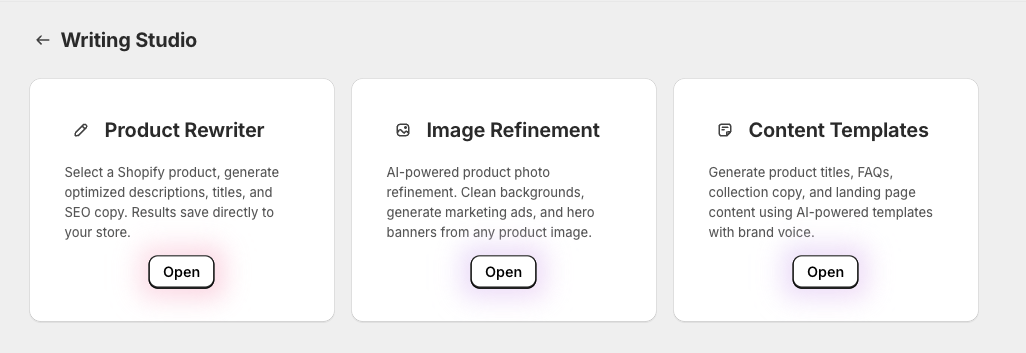
Hub for Product Rewriter, Content Templates, and Image Refinement — all your AI writing and visual tools in one place.
Writing Studio
Hub for Product Rewriter, Content Templates, and Image Refinement — all your AI writing and visual tools in one place.

- A central hub connecting three sub-features: Product Rewriter, Content Templates, and Image Refinement.
- Navigate to any writing or visual tool from a single page.
- Open Writing Studio from the navigation menu.
- Choose a sub-feature: Product Rewriter, Content Templates, or Image Refinement.
- Each sub-feature opens in its own workspace with full functionality.
A sub-feature card shows as locked.
- Check the plan badge on each card to see what's required.
- Upgrade your plan to unlock the feature.
What's the difference between Product Rewriter and Content Templates?
Content Templates
Generate Product FAQs, hero sections, brand blog posts, and collection descriptions with AI-powered templates and your brand voice.
Content Templates
Generate Product FAQs, hero sections, brand blog posts, and collection descriptions with AI-powered templates and your brand voice.
- AI-powered templates that generate entirely new content for your products and store.
- Four template types: Product FAQ, Hero Section, Brand Blog Post, and Collection Description.
- Each template can be published directly to Shopify (product body, blog articles, or collections).
- Optional product image upload to blend into generated hero banners.
- Open Writing Studio → Content Templates.
- Choose a template type (FAQ, Hero Section, Blog Post, or Collection Description).
- Select a product (or multiple products for Collections).
- Configure options: image style, topic, category, overlay text, etc.
- Click Generate — review and edit the output.
- Click "Publish to Shopify" to save the content to your store.
- Generates Q&A pairs from your product details — materials, care instructions, dimensions, etc.
- Published as HTML appended to the product body in Shopify.
- Select a product and click Generate. Edit the output, then Publish.
- Generates a landing-page hero section with cinematic banner image.
- Five image styles: Attractive (props & themed), Seasonal (current season), Minimalist (clean isolated), Informative (product name & logo), Monochrome (B&W editorial).
- Upload a product image to blend it into the scene, or leave empty for a theme-based image.
- Add optional overlay text (e.g. "Discover our new collection").
- Writes long-form blog posts about your craft, manufacturing process, artisan techniques, and more.
- Enter a topic (e.g. "Our wood-kiln firing process") and optional category.
- Published as a Shopify blog article with an AI-generated hero banner.
- Upload a product image to blend into the hero, or leave empty for a theme-based banner.
- Generates collection page copy with a hero banner image.
- Select multiple products to include in the collection.
- Enter a collection name and short description.
- Creates a new Shopify collection with the generated description and banner.
Generated content is blank or too short.
- Add more detail to the product description (materials, dimensions, care, origin).
- Try clicking Regenerate for a fresh output.
Hero image doesn't include my product.
- Upload a product image using the image uploader before generating.
- Use a clear product photo (PNG, JPG, or WebP, up to 10 MB).
Publish to Shopify failed.
- Refresh the page and try publishing again.
- If the error persists, reconnect from the Dashboard.
Where does the FAQ appear on my store?
Can I upload my own image for hero banners?
What image styles are available?
Image Refinement
AI-powered product photo cleanup — remove text, refine backgrounds, and save polished images back to Shopify.
Image Refinement
AI-powered product photo cleanup — remove text, refine backgrounds, and save polished images back to Shopify.
- Cleans up product images with AI: removes overlay text, refines or replaces backgrounds to match your brand.
- Uses product isolation (background removal) followed by AI background regeneration.
- Refined images are saved as new media on the product in Shopify — your original image is never replaced.
- Open Writing Studio → Image Refinement.
- Select a product with a featured image.
- Click "Optimize" to start the AI refinement process.
- Review the refined image (the process shows: analyzing → isolating → regenerating → polishing).
- Click "Save to Shopify" to add the refined image as new product media.
- Refined images are added as new media to the product using Shopify's productCreateMedia API.
- Your original product image is never deleted or replaced.
- The refined image is temporarily stored on Cloudflare R2, then uploaded to Shopify's media library.
- You can find the new image in your product's media gallery in Shopify admin.
- Image Refinement is a Pro plan feature.
- Pro plan includes 150 image credits per month.
- Each refinement uses 1 credit.
- Credits reset monthly on your billing date.
"No featured image found" error.
- Add a featured image to the product in Shopify admin.
- Select a different product that has an image.
Refinement looks wrong or artifacts appear.
- Try again — results can vary between runs.
- Use a product photo with a simpler background as the source.
"Save to Shopify" failed.
- Refresh the page and try saving again.
- Check your internet connection and retry.
Does it replace my original product image?
Where is the refined image stored?
How many credits do I get?
SEO
Edit SEO title/meta with SERP preview, apply CTR best practices, use competitor intel (Standard/Pro), and follow recommendations.
SEO
Edit SEO title/meta with SERP preview, apply CTR best practices, use competitor intel (Standard/Pro), and follow recommendations.
- SEO Details lets you edit SEO Title + Meta Description per locale and preview how it may appear in Google.
- All plans can receive recommendations; Standard/Pro can also enrich generation with competitor SERP context (best-effort).
- Open SEO from the navigation, or run Optimize in Rewriter.
- Select a product and click "Optimize SEO".
- Edit SEO title and meta description while watching preview and length guidance.
- Review competitor rankings (Standard/Pro) and CTR score.
- Save to Shopify to persist SEO fields for that locale.
- Lead with the primary keyword + clear product type.
- Add one strong differentiator (material, craft detail, outcome) without stuffing keywords.
- Keep it readable: titles ~70 chars, meta descriptions ~160 chars to avoid truncation.
- Standard/Pro can pull a small set of top Google results for a product keyword (product name + category).
- This is used as context to guide copy and highlight differentiators (without copying).
- If SERP integration is unavailable, competitor info may not appear (best-effort enrichment).
- Recommendations are guidance only (no auto-overwrite).
- Includes competitive edge and buyer intent strategy suggestions based only on facts present in your description.
- If the system cannot be confident without inventing facts, it may return empty recommendations — add real specifics and re-run.
Competitor info doesn't show up.
- Confirm you're on Standard/Pro.
- Treat competitor info as best-effort; you can still use SEO editor + recommendations without it.
Recommendations are blank or too generic.
- Add authentic details (materials, what's included, dimensions, care, origin/craft).
- Re-run Optimize and review recommendations again.
SEO results seem off or not relevant to the product's language.
- Go to Dashboard and set the target market to match the language of your product (e.g. JP for Japanese products).
- Re-run SEO optimization after changing the target market.
Will SEO edits change my product title on the page?
Do I have to accept recommendations?
My product is in Japanese but I want SEO for an overseas market. What should I do?
Japanese Value
Surface verified Japanese nuance/craft details and add them into your description as proof and differentiation.
Japanese Value
Surface verified Japanese nuance/craft details and add them into your description as proof and differentiation.
- Highlights craftsmanship/cultural nuance detected from the source text and explains why it matters to global buyers.
- Designed to strengthen credibility without making up claims.
- Run Optimize in Rewriter.
- Open Japanese Value / Key Details panel.
- Review evidence + explanation + suggested footer lines.
- Insert the insight into your description and Save to Shopify.
No insights detected.
- Add authentic details (materials, origin, method, care, what's included).
- Re-run Optimize to re-detect nuance.
Will it invent cultural claims?
Optimization Preferences
Control tone, measurements, Brand Soul integration, and content cleanup so output matches your brand and avoids common localization mistakes.
Optimization Preferences
Control tone, measurements, Brand Soul integration, and content cleanup so output matches your brand and avoids common localization mistakes.
- Preferences that influence generation before you save to Shopify.
- Includes: tone (Standard/Pro), EN measurement conversions, Brand Soul integration, and irrelevant content stripping.
- Choose tone before Optimize (Standard/Pro).
- Enable auto-convert units for English locales if needed.
- Enable "Enhance with Brand Soul" to inject your brand context into rewrites.
- Keep irrelevant-content stripping on for most stores; disable only when you intentionally include policy blocks in product descriptions.
- Optimize, review, and regenerate if needed.
- Basic: Professional tone only.
- Standard/Pro: Professional, Luxury, Minimalist, Playful.
- Use tone to match brand identity while keeping facts unchanged.
- When enabled for English locales, the app keeps metric values and appends US equivalents (when available).
- If the source has no measurable units, there may be nothing to convert.
- When enabled, your brand story, pillars, and voice are pulled into the rewrite for richer storytelling.
- Requires Brand Soul to be set up first (run the wizard from the Home page).
- Works across all plans. Disabled by default until Brand Soul intelligence is generated.
- Removes non-product boilerplate so the model focuses on product facts and selling points.
- If you want policy content, prefer storing it in theme sections/pages rather than product descriptions.
Tone selector is disabled.
- Upgrade to Standard/Pro to unlock additional tones.
No conversions appear.
- Run for an en-* locale.
- Ensure the description includes dimensions/weight/volume units.
It removed content I wanted to keep.
- Disable stripping and re-run Optimize.
- Or move policy content outside product descriptions (theme sections/pages).
"Enhance with Brand Soul" is greyed out.
- Go to the Home page and run the Brand Soul wizard first.
- Wait for brand intelligence generation to complete, then return to Rewriter.
Should I keep irrelevant content strip on?
What does "Enhance with Brand Soul" do?
Multi Locale Editor
Edit drafts per locale and save translations safely (Basic: 1 locale at a time; Standard/Pro: multi-locale + bulk).
Multi Locale Editor
Edit drafts per locale and save translations safely (Basic: 1 locale at a time; Standard/Pro: multi-locale + bulk).
- Per-locale editing and saving flow so each market gets tailored copy and SEO.
- Standard/Pro can generate multiple locales in one run; Basic runs one locale at a time.
- Select a locale tab/market.
- Edit title, description HTML, and SEO fields for that locale.
- Save to Shopify for that locale.
- Repeat for other locales (or bulk-generate on Standard/Pro).
I saw a digest/hash error during save.
- Avoid editing primary content in Shopify while saving translations.
- Re-run Optimize and Save again.
Drafts/context reset unexpectedly.
- Re-run Optimize using the updated Shopify description.
Why is Basic limited to one locale per run?
Marketing
Generate social media captions, ad copy, seasonal campaigns, email templates, and hero images — with optional Meta autonomous publishing.
Marketing
Generate social media captions, ad copy, seasonal campaigns, email templates, and hero images — with optional Meta autonomous publishing.
- A full marketing workspace with three tabs: Digital Marketing, Retail Campaigns, and Templates.
- Generate Instagram hooks/captions + hashtags, ad banners, hero images, and seasonal campaigns.
- Create email templates (launch, abandoned cart, welcome) and ad copy (Facebook/Instagram, Google Ads).
- Outputs can be cached to Shopify metafields for reuse without regenerating.
- Pro plan supports Meta (Facebook/Instagram) autonomous publishing.
- Open Marketing from the navigation menu.
- Choose a tab: Digital Marketing, Retail Campaigns, or Templates.
- Digital Marketing: Select a product, generate social captions, ad banners, and preview content for Instagram/TikTok.
- Retail Campaigns: View the seasonal retail calendar, get auto-generated campaign codes, and holiday-themed captions.
- Templates: Generate one-click marketing content — launch emails, abandoned cart emails, welcome emails, FB/IG ads, Google Ads.
- Save outputs to Shopify metafields for caching/reuse.
- Pro: Connect Meta credentials in Dashboard to enable autonomous ad publishing.
- Generate social media captions, hashtags, and overlay suggestions for Instagram/TikTok.
- Create ad banners and hero images with AI.
- Preview how content looks on social platforms before publishing.
- Save generated hooks and captions to Shopify metafields.
- View upcoming retail events and holidays on the seasonal calendar.
- Get auto-generated seasonal campaign ideas with discount code suggestions.
- Generate holiday-themed captions and campaign concepts.
- Use "Re-check" to refresh ideas when you need new angles.
- Launch Email: Product launch announcement email.
- Abandoned Cart Email: Cart recovery email with quality-focused messaging.
- Welcome Email: New subscriber welcome email matching your store's personality.
- Facebook/Instagram Ad: Social media ad copy optimized for engagement.
- Google Ads: Search ad copy for Google with high-intent keywords.
- Connect your Meta (Facebook/Instagram) account from the Dashboard.
- Requires a long-lived Page access token with pages_manage_posts permission.
- Once connected, ad templates can be published directly to your Meta page.
- Connection status is visible in the Dashboard.
Generate button is disabled / content looks cached.
- If available, use re-check/regenerate behavior.
- Update the product description to refresh context and generate again.
Seasonal output looks generic.
- Add specific differentiators (materials, use case, bundle contents).
- Re-check Seasonal Campaign.
Meta publishing failed.
- Go to Dashboard and update your Meta credentials.
- Ensure the token has pages_manage_posts permission.
- Verify the Page ID is correct (numeric ID from Facebook Page settings).
Social captions are in the wrong language.
- Go to Dashboard and set the Content Target Market to match your desired output language.
- Re-generate captions after changing the target market.
Ad banner generation failed (403 or quota error).
- Check your image credit usage on the Dashboard.
- Wait for the monthly reset, or upgrade to Pro for more credits.
- Use text-only features (captions, emails) which don't require image credits.
Hashtags are not relevant or in the wrong language.
- Ensure the target market matches your product's audience.
- For Japanese products targeting Japanese buyers, set target market to JP.
Where are marketing results stored?
How do I connect Meta for autonomous publishing?
What email templates are available?
Price Scout
Analyze competitor pricing from Google search results and get AI-powered pricing recommendations.
Price Scout
Analyze competitor pricing from Google search results and get AI-powered pricing recommendations.
- Pulls competitor pricing data from Google Shopping for your product name and category.
- The product's "Product Type" in Shopify is appended to the search query to find relevant competitors — an incorrect or generic product type (e.g., "General") will reduce result quality.
- Provides AI-powered pricing recommendations based on competitor analysis.
- Pro plan can auto-apply recommended prices directly to Shopify.
- Open Price Scout from the navigation menu.
- Select a product.
- Ensure the product has an accurate Product Type set in Shopify (e.g., "Japanese Cider" not "General"). This is used to search for relevant competitors.
- Click "Scout Prices" to analyze competitor pricing.
- Review competitor prices and the AI recommendation.
- Optionally apply the recommended price to Shopify (Pro plan).
No competitor prices found.
- Set an accurate Product Type for the product in Shopify (e.g., "Sake Set", "Ceramic Bowl", "Green Tea"). Avoid generic values like "General".
- If the product name is very long or specific, Price Scout automatically retries with a shorter version.
- For Japanese products targeting overseas markets, first rewrite the product into the target language, then run Price Scout.
Price recommendation seems too high or too low.
- Use the recommendation as guidance alongside your own market knowledge.
- Adjust the price manually if the recommendation doesn't fit your strategy.
Competitor results are from the wrong country (e.g. US results for a Japanese product).
- Go to Dashboard and set the target market to match the language of your product (e.g. JP for Japanese products, EN for English products).
- Re-run Price Scout after changing the target market.
- For best results, always match the target market with the primary language of your product descriptions.
Does it change my price automatically?
How often should I scout prices?
My product is in Japanese but I want pricing for an overseas market. What should I do?
Missions
Run multi-agent AI pipelines that chain Rewriter, SEO, Marketing, Pricing, Image Refinement, and Visual Marketing into automated workflows.
Missions
Run multi-agent AI pipelines that chain Rewriter, SEO, Marketing, Pricing, Image Refinement, and Visual Marketing into automated workflows.
- Missions are multi-step AI pipelines that process a product end-to-end by chaining multiple agents together.
- Choose from preset missions (ready-made combinations) or build custom pipelines with any agent combination.
- Run in auto-flow (all agents run sequentially) or step-by-step mode (approve each agent's output before continuing).
- Mission results are saved to Shopify: translations, SEO fields, metafields, blog articles, collections, and media.
- Open Optimize from the navigation menu.
- Choose a preset mission or select "Custom Mission" to build your own pipeline.
- Select a product for the mission.
- For blog missions: enter a topic and optional category. For collection missions: name the collection and select products.
- Click "Launch Mission" to start.
- In auto-flow: watch progress as each agent runs. In step-by-step mode: review and approve/regenerate/skip each step.
- When complete, results are automatically saved to Shopify.
- Basic: Social Hype-Man (Rewriter → FB/IG Ad), New Arrival Blast (Rewriter → Launch Email), Welcome Journey (Rewriter → Welcome Email), Artisan Storyteller (Rewriter → Hero Section).
- Standard: Competitor Rebuttal (SEO → Product FAQ), Abandoned Cart Fix (PriceScout → Abandoned Cart Email), SEO Content Factory (SEO → Blog Post), Collection Refresher (SEO → Collection), Google Ads Shield (SEO → Google Ads), Market Awareness Audit (SEO → PriceScout).
- Pro: Full Launch (all 6 agents), Visual Ad Blitz (Marketing → Visual Marketing).
- Add any combination of agents: Rewriter, SEO, Marketing, PriceScout, Image Refinement, Visual Marketing.
- Reorder agents by dragging them up/down in the pipeline.
- Select optional templates for each step (e.g. Product FAQ, Blog Post, Launch Email).
- Some agents are plan-gated (Image Refinement and Visual Marketing require Pro).
- Auto-flow: All agents run in sequence automatically. Results stream in real-time.
- Step-by-step: Each agent pauses after completing. Review the output, then Continue, Regenerate, or Skip.
- Step-by-step is recommended for your first few missions to understand how each agent contributes.
- Recent missions are shown below the mission builder.
- Each mission shows: status (Completed, In Progress, Error, Awaiting Approval), agents used, product, and time.
- Click "Resume" on an in-progress or awaiting-approval mission to continue where you left off.
- Click "View Full Details" to see the complete output of a completed mission.
| Feature | Basic | Standard | Pro | Notes |
|---|---|---|---|---|
| Missions per month | 1/month | 3/month | Unlimited | Free plan: 3 lifetime credits. |
| Text agents (Rewriter, SEO, Marketing, PriceScout) | ✅ | ✅ | ✅ | Available across all paid plans. |
| Image agents (Image Refinement, Visual Marketing) | ❌ | ❌ | ✅ | Pro only. Uses image credits (150/month). |
| Custom pipeline builder | ✅ | ✅ | ✅ | Agent availability depends on plan. |
| Step-by-step approval mode | ✅ | ✅ | ✅ | Optional — auto-flow is the default. |
Mission failed or got stuck.
- Check the mission timeline for error details.
- Try launching a new mission with the same configuration.
- If it keeps failing, the product may have insufficient data — add more product details.
An agent was skipped automatically.
- Check plan availability for each agent.
- Ensure the product has enough content for all agents to work with.
Mission counter shows 0 remaining.
- Wait for the monthly reset on your billing date.
- Upgrade to a higher plan for more missions (Pro = unlimited).
403 Forbidden when launching a mission.
- Check mission and image credit usage on the Dashboard.
- Image-only missions (Image Refinement, Visual Marketing) use image credits, not mission credits.
- Full missions use both mission credits and rewriter credits.
- Upgrade your plan for more credits.
Visual Marketing / Image Refinement step failed.
- Ensure the product has at least one image in Shopify.
- Check image credit usage on the Dashboard.
- Upload a custom image when launching the mission.
Rewriter output saved but SEO fields are empty.
- After the mission completes, open the SEO page for the product and run a manual SEO optimization.
- Check if the product has enough description content for SEO generation.
Does the mission save results to Shopify automatically?
Can I resume a mission that was interrupted?
What happens if I skip an agent step?
Which preset mission should I start with?
My product content is in Japanese — how do I get accurate SEO or pricing analysis for overseas markets?
Bulk Upload
Upload up to 10 products via CSV to optimize in one batch — text-only or full launch with images. Pro plan only.
Bulk Upload
Upload up to 10 products via CSV to optimize in one batch — text-only or full launch with images. Pro plan only.
- Upload a CSV file with up to 10 products (title, description, category, target market) to process in one batch.
- Hard limit: maximum 10 products per upload.
- Two modes: Text-only (Rewriter → SEO) and Full Launch (Rewriter → Image Refinement → SEO).
- Full Launch mode requires a ZIP file containing products.csv and an images/ folder.
- Products are created as drafts in Shopify automatically as each one completes.
- Requires Pro plan. Image credits are checked before starting Full Launch batches.
- Navigate to Missions and select a bulk mission (Bulk Text Upload or Bulk Full Launch). Pro plan required.
- Choose a mode: Text-only (.csv file) or Full Launch (.zip file with CSV + images).
- Prepare a CSV file named products.csv with required columns: row_id, product_name_ja, description_ja, category, target_market.
- For Full Launch: add an image_ref column to the CSV pointing to filenames in the images/ folder, then package everything in a ZIP.
- Configure preferences: tone profile, Brand Soul, US unit conversion, and target market.
- Click "Launch Bulk Mission" to start processing.
- Products are processed sequentially. Monitor progress on the status page — you can leave and come back anytime.
- Completed products are automatically created as drafts in Shopify.
- Required columns: row_id, product_name_ja, description_ja, category, target_market.
- row_id: a unique identifier for each product row.
- product_name_ja: the Japanese product name.
- description_ja: the Japanese product description.
- category: the product type (e.g. "Tableware", "Clothing").
- target_market: locale code (e.g. "en", "zh-TW", "ko").
- For Full Launch: add an image_ref column with the filename of the product image in the images/ folder (e.g. "matcha_powder.jpg").
- ZIP must contain a products.csv file and an images/ folder.
- Each row's image_ref value must match a file in the images/ folder.
- Supported image formats: JPEG, PNG, WebP.
- Each product uses 1 image credit from your monthly allowance (150/month on Pro).
- Maximum 10 products per upload (enforced on both frontend and backend).
- Each product consumes 1 mission credit (Pro plan has unlimited missions).
- Full Launch: each product additionally uses 1 image credit. The system checks remaining image credits before starting and rejects the batch if insufficient.
- Pro plan provides 150 image credits/month and unlimited mission credits.
"Maximum 10 products per upload" error.
- Reduce the CSV to 10 products or fewer.
- Split larger batches into multiple uploads of up to 10 products each.
"Batch requires N image credits but you have M remaining."
- Reduce the number of products in the CSV.
- Switch to Text-only mode (no image credits needed).
- Wait for your monthly image credit reset.
"CSV is missing required column(s)" error.
- Ensure the CSV has all required columns: row_id, product_name_ja, description_ja, category, target_market.
- For Full Launch mode, also include an image_ref column.
- Column names are case-sensitive.
"Image file not found in images/ folder" error.
- Verify that each image_ref value exactly matches a filename in the images/ folder (e.g. "photo.jpg", not "images/photo.jpg").
- Check for typos or case differences in filenames.
- Ensure the images/ folder is at the root level of the ZIP.
Some products fail while others succeed.
- Check the batch status page for specific error messages per product.
- Re-upload a new CSV with only the failed products.
- Ensure all products have non-empty titles and descriptions.
"This feature requires the Pro plan" error.
- Upgrade to the Pro plan ($199/month) to unlock bulk upload.
How many products can I upload at once?
Can I upload Japanese product data?
What's the difference between Text-only and Full Launch?
What happens if some products fail mid-batch?
Which plan includes bulk upload?
Dashboard
Monitor your plan, track usage and credits, manage Meta integration, configure language and target market — all from a single view.
Dashboard
Monitor your plan, track usage and credits, manage Meta integration, configure language and target market — all from a single view.
- Your operational command center: plan status, usage tracking, feature availability, and integrations.
- Track missions used, image credits, and monthly product rewrites.
- Configure content target market and app language.
- Manage Meta (Facebook/Instagram) integration for autonomous ad publishing (Pro).
- Open Dashboard from the navigation menu.
- Review your plan status, total products optimized, and active markets.
- Check the Usage Summary for mission credits, image credits, and rewrite counts.
- Set your Content Target Market to choose which locale AI content targets.
- Switch App Language between English and Japanese.
- Pro: Set up Meta Integration with your access token and page ID for autonomous publishing.
- Missions: Shows used/total missions for the current billing period. Free plan has lifetime credits; paid plans reset monthly.
- Images: Shows used/total image credits (Pro only, 150/month).
- Product Rewrites: Shows used/total rewrites for the current month.
- Reset date is displayed for monthly quotas.
- Choose which market your AI-generated content targets (e.g. English US, Traditional Chinese Taiwan, Korean, etc.).
- This affects language, cultural tone, and competitor analysis across all features.
- 12 supported markets: en, zh-TW, ko, de, fr, es, it, pt, th, vi, zh-CN.
- Switch the app UI between English and Japanese.
- This applies globally across all pages — navigation, labels, buttons, tooltips.
- Content generation language is controlled separately by Content Target Market.
- Connect your Facebook/Instagram page for autonomous ad publishing.
- Enter a long-lived Page access token (with pages_manage_posts permission) and your numeric Page ID.
- Once connected, marketing ad templates can be published directly to your Meta page.
- Connection status shows as Connected/Not connected in the Dashboard.
- If you downgrade or cancel, a grace period keeps your current plan active until the end of the billing cycle.
- During grace period, all features of your previous plan remain accessible.
- After grace period ends, features revert to the new plan level.
Authentication error / reconnect banner.
- Click "Reconnect" or "Refresh Session" and return to the dashboard.
- Retry the action after re-auth completes.
Usage numbers seem wrong.
- Refresh the page to get the latest usage data.
- If usage still seems incorrect, contact support with your shop domain.
Locked features I expected to have.
- Check your current plan in the Dashboard header.
- If you recently upgraded, refresh the page to sync the latest plan.
- Review the locked features section to see which plan is needed.